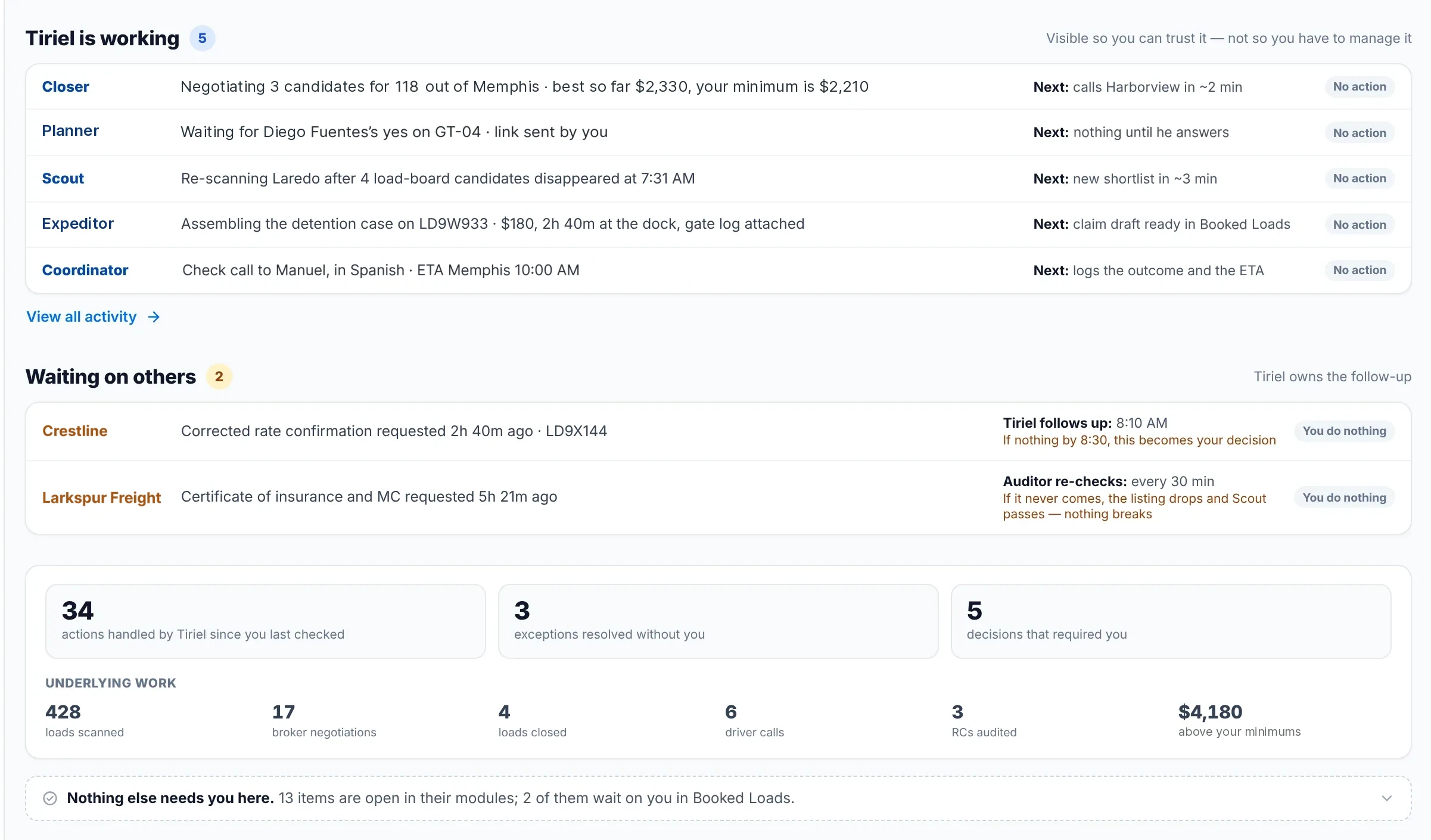
Before you start.
- An email and a card, to open the account.
- The login for the inbox your brokers write to, Gmail or Outlook, and your own 123Loadboard login.
- One carrier’s packet: W-9, certificate of insurance and authority letter.
- One driver’s name and phone, and a few minutes of his time to open a link.
One truck is enough for day one. Everything below happens in the Tiriel app at app.tiriel.ai, except the two things only other people can do: the driver’s yes, and the broker’s rate con.
Create your account
Set up your channels
Add your first truck
Send the driver his link
Get the truck’s capacity
Give Scout freight to search
Set Closer’s limits
Authorize your first load
Check the rate con
Find it in Booked Loads
Step 1: Create your account.
Sign up at app.tiriel.ai/onboarding with your email, confirm it from the email Tiriel sends you, set a password and pay the $99 first month. Then sign in.
- You: register, and accept the terms.
- Tiriel: verifies your email and records your password and your acceptance.
Every screen is in Create your account, with what the first month includes.
Step 2: Set up your channels.
Open Agents, then Channels. Choose Get a number, pick your local area and choose Assign my dispatch number. On the same screen, confirm your name, give your agent a name and type your operation’s commercial name. Then choose Integrate my email and connect your Gmail or Outlook inbox. Tiriel reads and replies from that same address.
- You: choose the area, your agent’s name, your commercial name and the inbox.
- Tiriel: assigns your account a phone number of its own. From then on the agent introduces itself with the name you gave it.
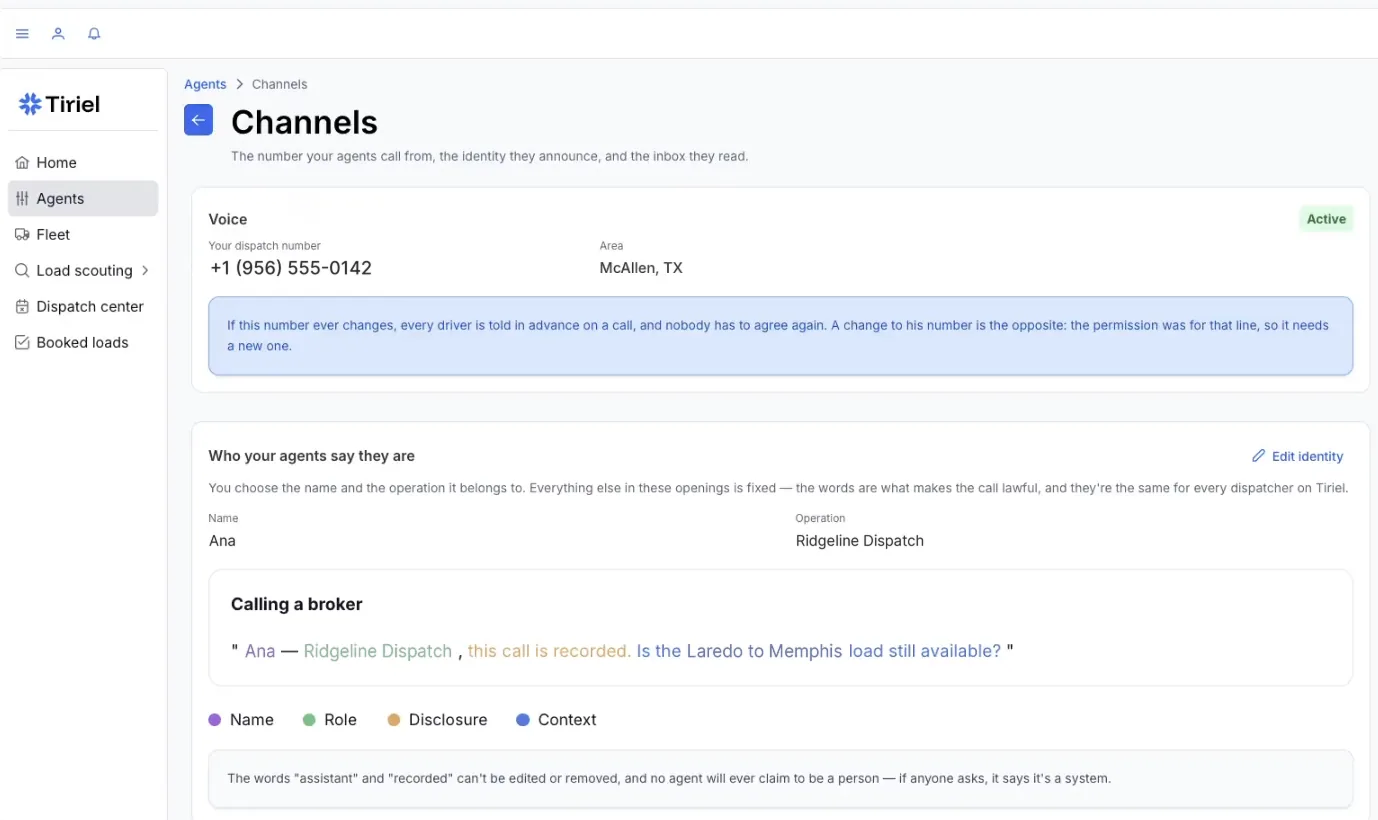
Details in Connect your tools, steps 1 to 4.
Step 3: Add your first truck.
Open Fleet and choose Add truck. Drop the carrier’s packet, describe the truck, and add the driver’s name and phone. One save registers the truck, the owner operator and the driver.
- You: enter the data. For a new owner operator, that includes your own commission with him, as a percentage of the all-in rate: Tiriel only records it and charges no commission. If the owner runs an ELD, send him the ELD invitation too.
- Tiriel: Auditor reads the carrier from the packet and checks it against FMCSA.
Details in Add trucks and drivers.
Step 4: Send the driver his link.
Saving the truck gives you a message with the driver’s own link. Choose Copy message, or Copy link only, and send it to him yourself, from the chat you already use with him, so it comes from someone he knows. He opens it, reads who will call him and from which number, and says yes or no.
- You: send the link. Nobody else does: Tiriel never writes to a driver first.
- The driver: decides. No agent calls him before his yes.
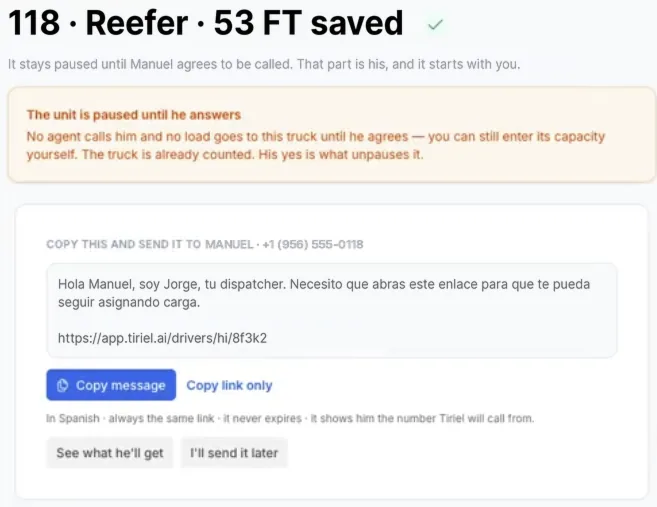
What he reads, and how he stops it later, is in Authorizations and consent.
Step 5: Get the truck’s capacity.
Open Agents, then Planner. Under When Planner calls, set the days it calls and the window, and check that the switch reads Working. Planner calls the driver, in English or Spanish, and asks where he is, whether he is loaded or empty, moving or stopped, and how many driving hours he has left.
- You: set when Planner calls. If you already know where the truck is, enter the capacity yourself in Fleet and don’t wait.
- Tiriel: Planner records the answers as the truck’s capacity, with the recording as evidence. With an ELD connected, it asks only for what the ELD didn’t give.
'%3E%3Ccircle cx='100' cy='96' r='82' fill='%23FFE4E8'/%3E%3Cpath d='M30 200C32 166 56 150 84 146L100 158 116 146C144 150 168 166 170 200Z' fill='%23E11D48'/%3E%3Cpath d='M84 146 100 170 116 146 109 143 100 158 91 143Z' fill='%23FFF'/%3E%3Cpath d='M88 124V148C93 154 107 154 112 148V124Z' fill='%23EDC8A2'/%3E%3Cellipse cx='68' cy='95' rx='7' ry='10' fill='%23EDC8A2'/%3E%3Cellipse cx='132' cy='95' rx='7' ry='10' fill='%23EDC8A2'/%3E%3Cpath d='M70 89C70 59 84 43 100 43S130 59 130 89C130 115 117 135 100 135S70 115 70 89Z' fill='%23EDC8A2'/%3E%3Cpath d='M73 101 C75 127 90 139 100 139 C110 139 125 127 127 101 C121 116 112 123 100 123 C88 123 79 116 73 101 Z' fill='%234A3221'/%3E%3Cpath d='M88 114 C94 110 106 110 112 114 C106 116 94 116 88 114 Z' fill='%234A3221'/%3E%3Ccircle cx='89.5' cy='92' r='5' fill='%230B0B0B'/%3E%3Ccircle cx='111.5' cy='92' r='5' fill='%230B0B0B'/%3E%3Cpath d='M92 119C97 123 103 123 108 119' fill='none' stroke='%23B06A57' stroke-width='4.5' stroke-linecap='round'/%3E%3Cpath d='M71 81 C70 53 84 39 100 39 C117 39 130 53 129 81 C126 65 118 55 100 55 C84 55 75 65 71 81 Z' fill='%234A3221'/%3E%3Cpath d='M66 92 C62 40 138 40 134 92' fill='none' stroke='%231F2937' stroke-width='9' stroke-linecap='round'/%3E%3Cpath d='M58 84 h12 a4 4 0 0 1 4 4 v14 a4 4 0 0 1 -4 4 h-12 a4 4 0 0 1 -4 -4 v-14 a4 4 0 0 1 4 -4 Z M130 84 h12 a4 4 0 0 1 4 4 v14 a4 4 0 0 1 -4 4 h-12 a4 4 0 0 1 -4 -4 v-14 a4 4 0 0 1 4 -4 Z' fill='%231F2937'/%3E%3C/g%3E%3C/svg%3E)
Truck 118 · Manuel
Fleet · capacity
- Where
- Laredo, TX
- Loaded or empty
- Empty
- Moving or stopped
- Stopped
- Driving hours left
- 9h
From a Planner call, in Spanish. The recording is the evidence.
Step 6: Give Scout freight to search.
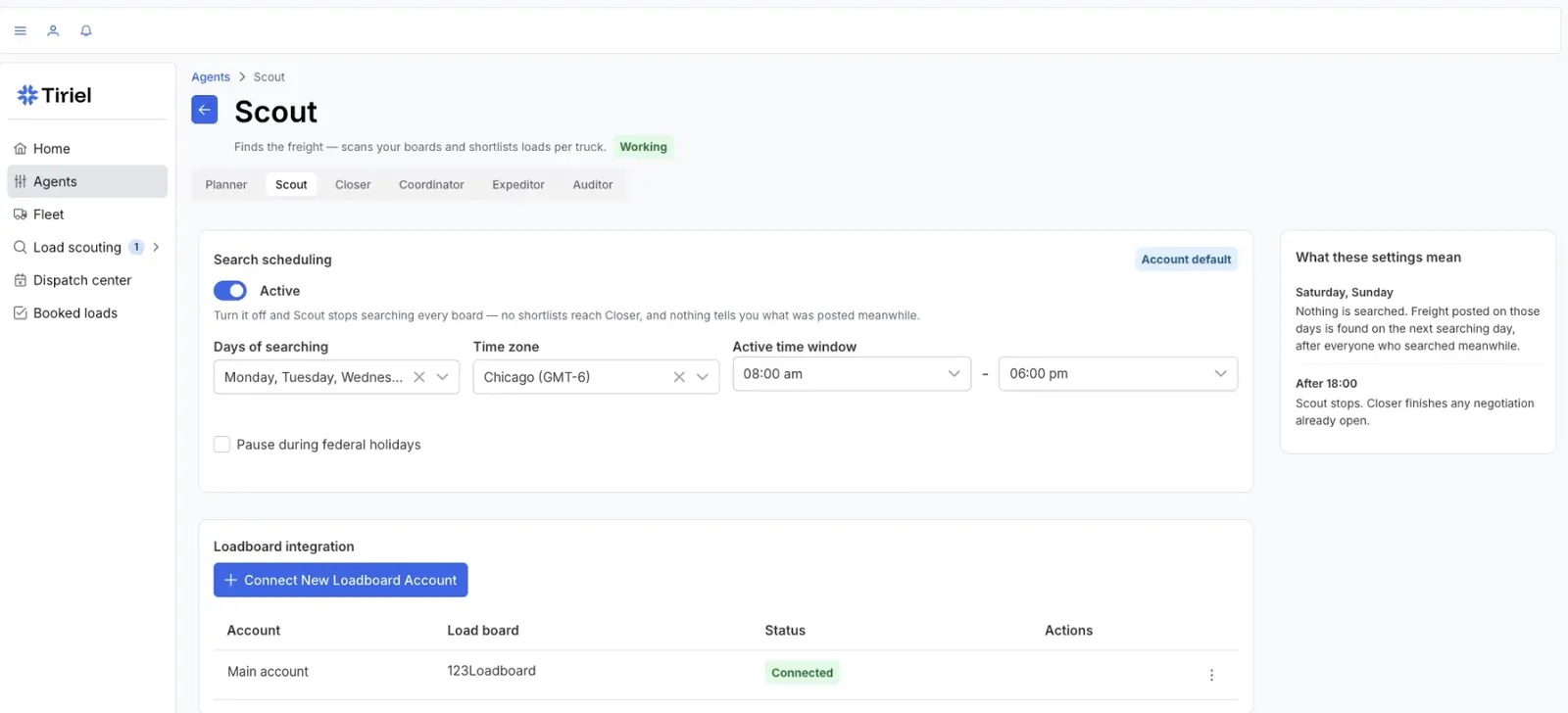
Open Agents, then Scout. Choose Connect New Loadboard Account, pick 123Loadboard, name the account and choose Continue. Sign in on 123Loadboard’s own page and choose Authorize. Then, under Search scheduling, set the days, time zone and hours Scout searches, and switch it to Active: it starts Paused.
- You: connect your load boards and set the schedule. You can also bring a load you found yourself, in Load scouting under Bring a load.
- Tiriel: Scout searches 123Loadboard with the truck’s real data, merges duplicates and ranks what it finds. Offers that arrive in your inbox become loads too.
Without a connected load board, Scout runs no search. DAT and Truckstop: working on them, coming soon. Details in Connect your tools, step 5.
Step 7: Set Closer’s limits.
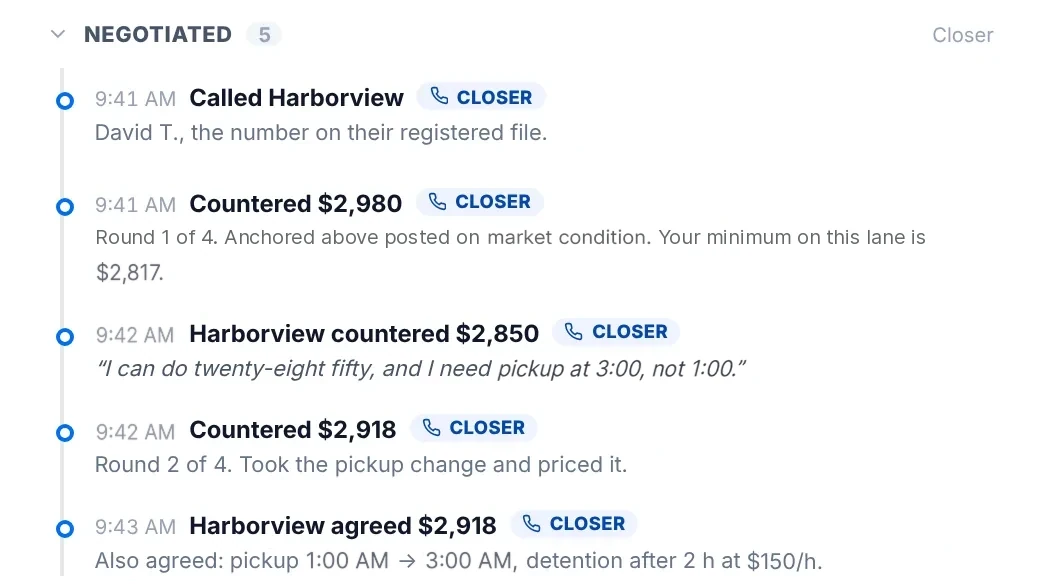
Open Agents, then Closer. Set the target rate, the minimum, the number of counteroffers, and whether Closer needs your authorization before it books. On day one, leave the authorization on.
- You: set the four limits.
- Tiriel: Closer calls the broker, in English or Spanish, opens above your target, and never closes below your minimum. It never accepts a rate at or below what the broker posted.
Details, with a worked example, in Set your rules.
Step 8: Authorize your first load.
When Closer agrees a load, it appears in Dispatch center as Ready to authorize. Open it, check the rate, the truck and the call, and authorize it or reject it.
- You: authorize or reject.
- Tiriel: on your yes, it asks the broker for the rate confirmation, with the carrier’s details.
'%3E%3Ccircle cx='100' cy='96' r='82' fill='%23DDF7EC'/%3E%3Cpath d='M30 200C32 166 56 150 84 146L100 158 116 146C144 150 168 166 170 200Z' fill='%23059669'/%3E%3Cpath d='M84 146 100 170 116 146 109 143 100 158 91 143Z' fill='%23FFF'/%3E%3Cpath d='M88 124V148C93 154 107 154 112 148V124Z' fill='%23F0CDA6'/%3E%3Cellipse cx='68' cy='95' rx='7' ry='10' fill='%23F0CDA6'/%3E%3Cellipse cx='132' cy='95' rx='7' ry='10' fill='%23F0CDA6'/%3E%3Cpath d='M70 89C70 59 84 43 100 43S130 59 130 89C130 115 117 135 100 135S70 115 70 89Z' fill='%23F0CDA6'/%3E%3Ccircle cx='89.5' cy='92' r='5' fill='%230B0B0B'/%3E%3Ccircle cx='111.5' cy='92' r='5' fill='%230B0B0B'/%3E%3Cpath d='M90 117C96 123 104 123 110 117' fill='none' stroke='%23B46C5A' stroke-width='5' stroke-linecap='round'/%3E%3Cpath d='M70 83 C68 55 82 37 102 37 C120 37 134 51 130 83 C128 69 122 59 112 55 C100 57 86 59 78 67 C74 71 72 77 70 83 Z' fill='%231E1A17'/%3E%3Cpath d='M66 92 C62 40 138 40 134 92' fill='none' stroke='%231F2937' stroke-width='9' stroke-linecap='round'/%3E%3Cpath d='M58 84 h12 a4 4 0 0 1 4 4 v14 a4 4 0 0 1 -4 4 h-12 a4 4 0 0 1 -4 -4 v-14 a4 4 0 0 1 4 -4 Z M130 84 h12 a4 4 0 0 1 4 4 v14 a4 4 0 0 1 -4 4 h-12 a4 4 0 0 1 -4 -4 v-14 a4 4 0 0 1 4 -4 Z' fill='%231F2937'/%3E%3C/g%3E%3C/svg%3E)
LD9W955
Laredo, TX → Memphis, TN · Harborview
- Posted
- $2,712
- Agreed
- $2,918 +$206
- Truck
- 118 · Manuel
- Negotiation
- Recorded call · 2m 04s
Step 9: Check the rate con.
When the broker sends the rate con, it is read field by field against what was agreed. If it matches, you do nothing. If it doesn’t, you choose in Dispatch center: Tiriel emails the broker for an updated rate con, or you discard the load.
- You: nothing, unless the paper doesn’t match.
- Tiriel: Closer checks every field against the call and the posting, and Auditor checks who the rate con is made out to. The load holds until the paper matches.
What each answer does is in Approve the exceptions, step 4.
Step 10: Find it in Booked Loads.
Open Booked Loads. A load whose rate con was approved is listed there. That is your first load found, negotiated and papered by your agents, with your yes in the middle.
- You: check your booked loads.
- Tiriel: keeps the call recording, the email thread and the rate con with the load.
What happens next.
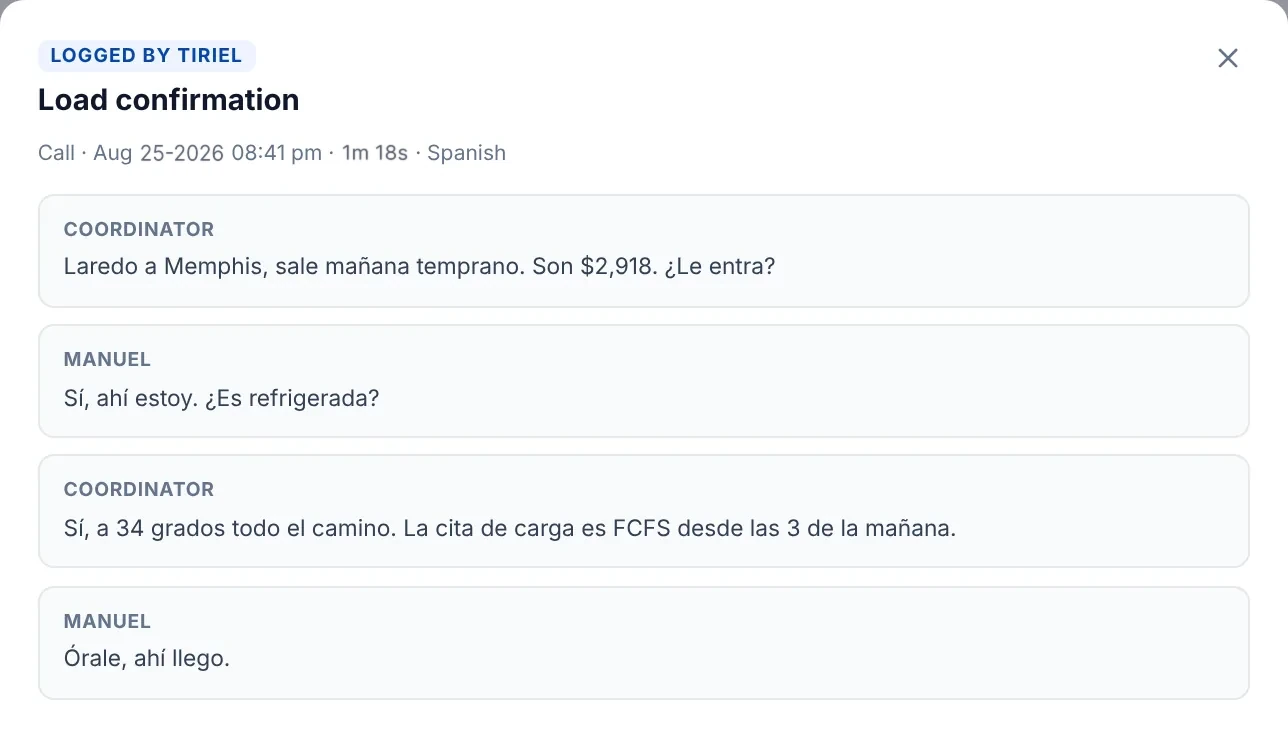
Once a load is booked, Coordinator runs it: check calls, pickup and delivery instructions, ETAs and milestone emails to the broker through POD, in the driver’s language. Expeditor handles detention, layover and TONU: when a claim is due, it opens the case with the gate times, ELD reads and call recordings, prepares the claim and leaves it ready to send in one click.
Day two is shorter. Add the rest of your trucks, send each driver his link, and tighten the rules once you have seen a few negotiations. When something waits on you, Approve the exceptions shows where to look.