Before you start.
- Your dispatch number and your agent’s name, from Connect your tools. The driver sees both before he agrees to anything.
- The carrier packet. Usually the W-9, the certificate of insurance and the authority letter. Photos, scans and PDFs all work.
- The truck: its unit number, its type and its length. The plate is optional. Nobody asks you for a VIN.
- The driver’s name and the phone he answers. It is the number your agents call.
Step 1: Start with the carrier.
Open Fleet and choose Add truck. The first question, Owner, is whose truck it is: choose An owner operator I already work with and start typing the carrier’s name or DOT number, or choose A new owner operator.
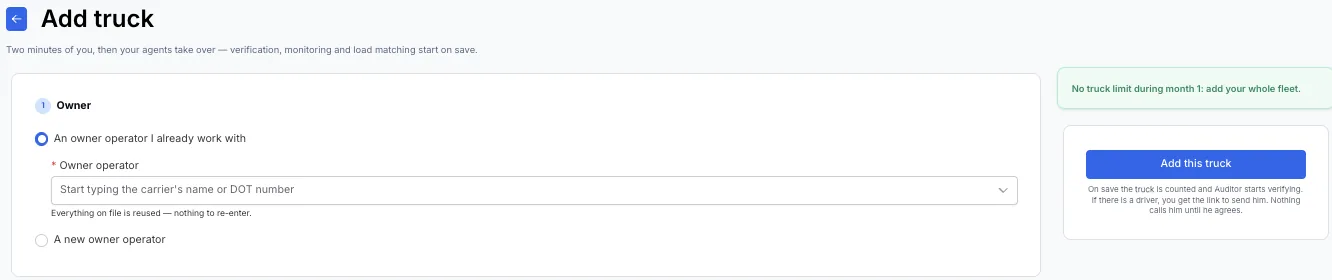
- A carrier you already have. You go straight to the truck in step 3. A second truck for the same owner operator takes a minute.
- A new carrier. You add it from its packet, in step 2.
- If you are the owner operator, the carrier is your own company. Add it the same way.
A carrier is never added on its own. It exists on your account because one of its trucks does.
Step 2: Drop the carrier packet.
For a new carrier, drop the documents it sent you, in any order: the W-9, the certificate of insurance, the authority letter. Auditor reads the DOT, MC, legal name, phone, email and address from them and checks them against FMCSA. You confirm, and correct only what is wrong.
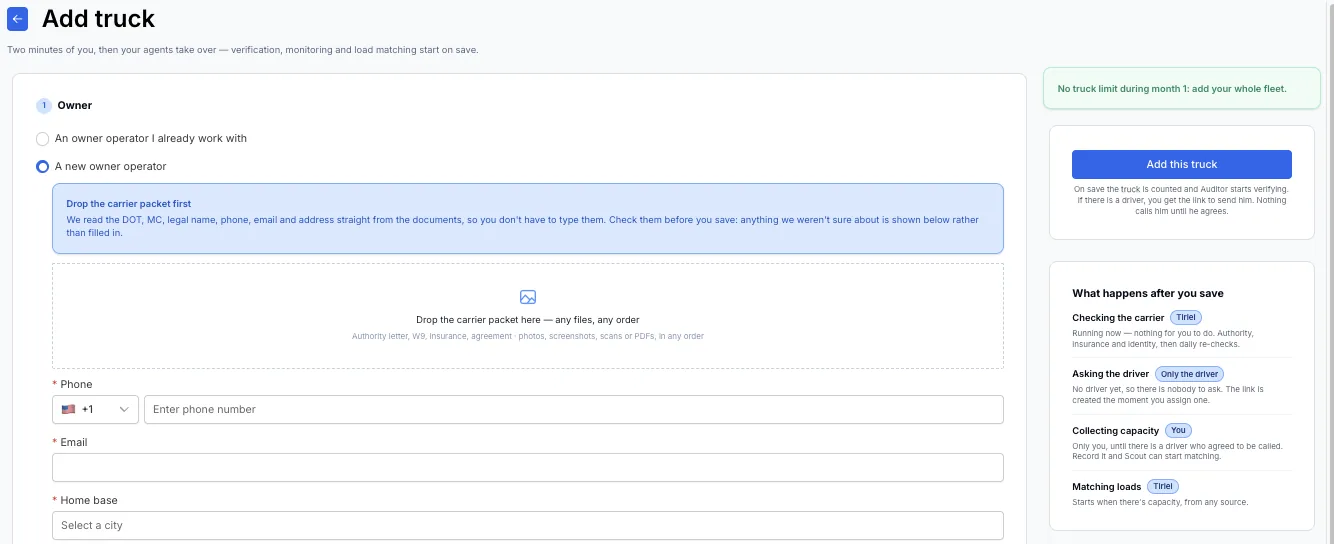
Photos from a phone, screenshots, scans and PDFs are all read, and file names don’t matter. If a photo can’t be read, you are told which one to take again. A document covered by a watermark is not read. You can also skip the documents and type everything yourself.
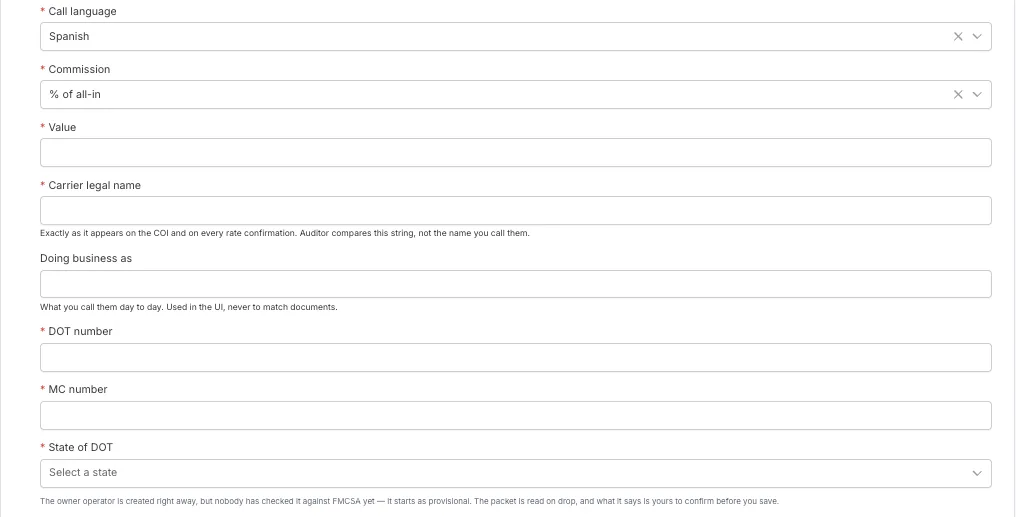
Then set the owner operator’s home base, the language he is called in, and your commission and its value. Commission is your own commission with the owner operator, as a percentage of the all-in rate; Tiriel only records it and charges no commission. The carrier legal name must match the COI and the rate cons exactly; the name you use day to day goes in Doing business as.
You don’t wait for the check to finish. The first read starts the moment you add the carrier, and Fleet updates on its own when it arrives.
Step 3: Describe the truck.
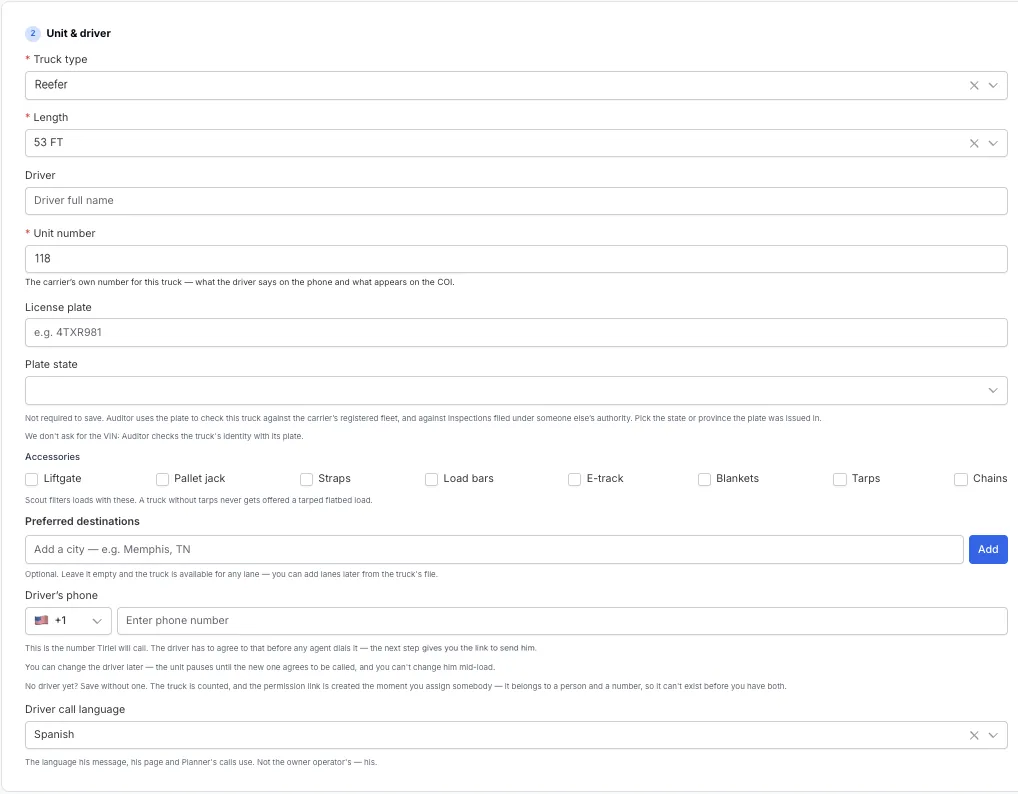
Under Unit & driver, enter the unit number, the truck type and the length. Add its accessories if it has any. The plate and its state are optional, and you can add them later.
- Unit number. Whatever the carrier calls the truck: 118, GT-04 and Unit 4 are all fine.
- Type and length. They are never copied from another truck. Scout matches loads against them.
- Accessories. Liftgate, pallet jack, straps, load bars, E-track, blankets, tarps, chains. Scout filters loads with them: a truck without tarps is never offered a tarped flatbed load.
- Plate and state. Optional. They let Tiriel check the truck against the carrier’s registered fleet.
- Preferred destinations. Optional. Leave it empty and the truck is available for any lane; you can add lanes later from the truck’s file.
That is the whole list: no VIN, year, make or model, registration or title.
Step 4: Add the driver and his phone.
In the same section, type the driver’s full name in Driver and the phone number he answers in Driver’s phone. This is the number your agents call, only after he agrees, and the one his consent is tied to, so check it with him.
Paste the number however you have it. Formatting and a country code are kept, and Mexican numbers are recognized. If the driver is already on another carrier of yours, Tiriel recognizes his phone. Then set Driver call language, English or Spanish: it is the language of his message, his page and Planner’s calls, and it is his, not the owner operator’s.
You can save a truck without a driver. It is complete and it counts, but nobody is called for it. His link is created when you assign him, because it belongs to a person and a phone number.
Step 5: Save.
Choose Add this truck (it reads Add plus the unit number once you type it). One save does three things together: it creates the truck, counts it on your account, and creates the driver’s invitation. Saving twice by accident creates one truck, not two.
The truck starts paused for consent. No agent calls the driver until he says yes. The truck counts from the day you add it. In month 1 that changes nothing, since the month is $99 with unlimited trucks.
Step 6: Send the driver his link.
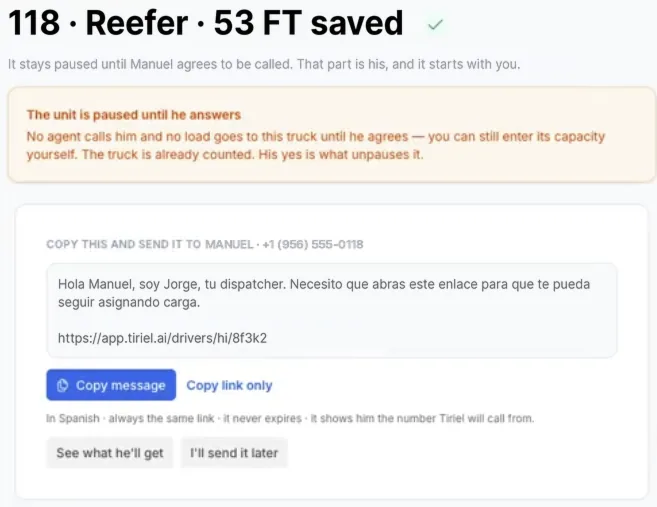
After the save, Tiriel gives you a short message and the driver’s link, written in his language. Choose Copy message, or Copy link only, and send it yourself, from the chat you already use with him.
See what he’ll get shows the page he will open. If you can’t send it now, choose I’ll send it later: the unit waits in Needs attention with the link.
There is no send button, on purpose. Tiriel never writes to a driver first, and it never reminds one who hasn’t answered. He hears about it from you, because he already knows you. If he loses the link, send the same one again: it never expires and it never changes. While he hasn’t answered, you can copy the message and the link again from his consent status in Fleet.
The link opens on his phone. It tells him who will call, from which number, what he will be asked and that calls are recorded. Then he chooses “Yes, call me” or “No, thanks”. Authorizations and consent shows the page he reads and how he stops it later.
Step 7: Record the truck’s capacity.
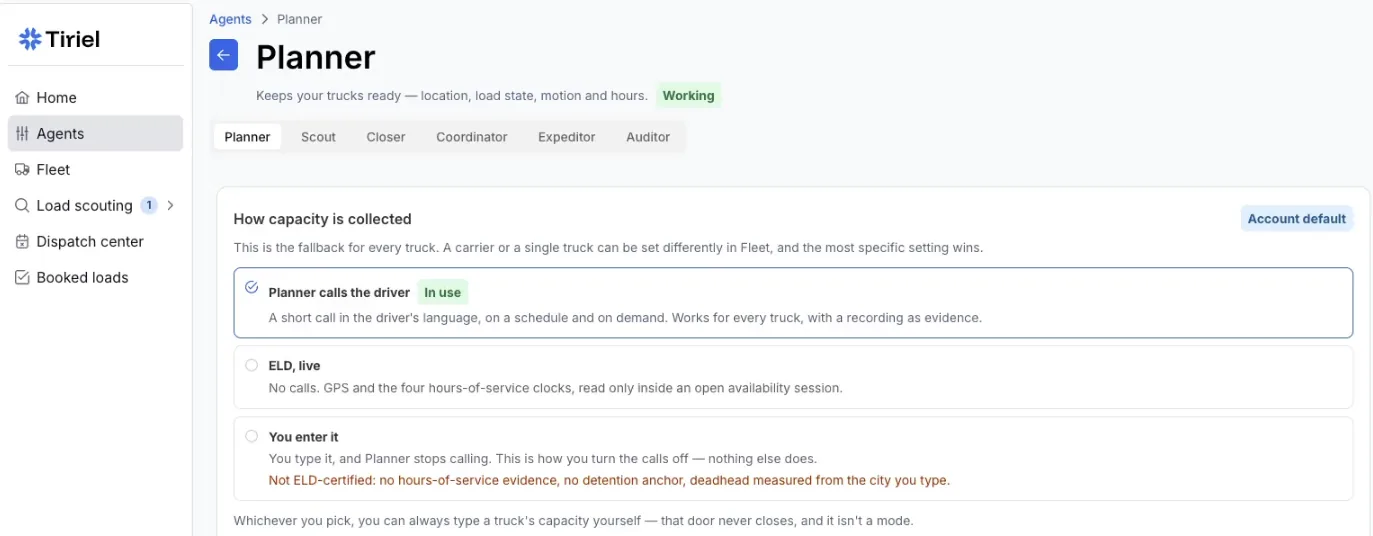
Scout can’t match a truck it knows nothing about. Capacity is four facts: where the truck is, loaded or empty, moving or stopped, and driving hours left. Enter it yourself in Fleet, or let Planner or the ELD supply it.
- You enter it. In Fleet, choose Enter capacity. There is one row per truck, so you can do several in one save, and you say how long each reading holds.
- Planner calls. Once the driver has agreed, Planner calls him and asks. While it is calling, the truck’s row says so.
- On demand. From the truck’s actions, choose Request capacity, then Call now: Planner calls him right away. If nobody answers, it retries and leaves a voicemail.
- The ELD. If the owner connected it, Planner asks only for what the ELD didn’t give.
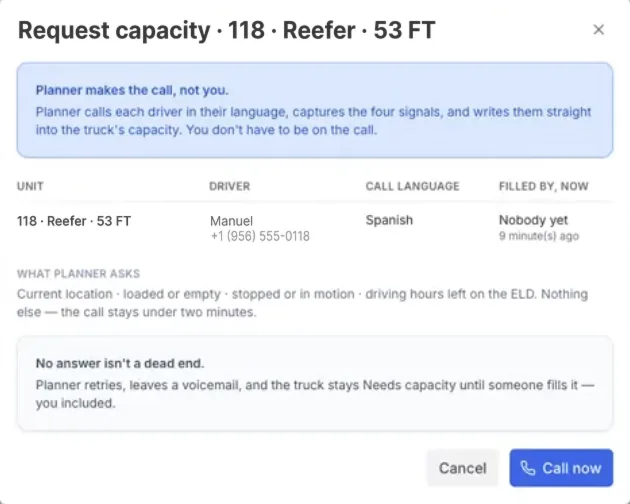
You don’t have to wait for the driver. Consent decides whether Tiriel may call him. You can always enter a truck’s capacity yourself.
Every truck’s row shows one of four states, with the reason under it: Ready, On load, Needs capacity or Held. Capacity expires. When it does, you are asked to confirm it is still true before the truck is committed to a load.
- Truck 118 · ManuelReady
Empty · Laredo, TX · stopped. Planner call, good for 4 more hours.
- Truck GT-04Needs capacity
The driver hasn’t answered his link. Enter it yourself, or send the link again.
- Truck OUS-02On load
Skipped by Planner until it delivers.
Change a truck later.
Each action says what it does to your count before you confirm it. If the truck is on a load, the change waits until delivery, and the row shows it with a Cancel.
- Pause. Agents stop searching loads for the truck and stop calling its driver. The truck still counts toward your plan.
- Archive. The truck leaves your operation and keeps its records. It stops counting. The dialog opens with what you pay after the change.
- Replace. The old truck is archived and the new one takes its place in one step. Your count and your charge don’t move.
- Delete. Only for a truck that was never used. Its documents and capacity records go; the driver’s consent record is kept.
- Change driver. The new driver gives his own consent, on his own link. A load in progress blocks the change, and the screen names the load.
Consent belongs to a driver and his phone number, not to a truck. A driver who agreed on one truck needs nothing new on another. A new number needs a new yes.
Who uses the account.
Tiriel counts trucks, never people. Nobody on this list is billed.
- You, the Owner. The person who created the account signs in, sets the rules and holds billing.
- Drivers don’t sign in. A driver’s only screen is his own consent page.
- Owner operators don’t sign in either. Their part is the carrier packet they send you and, if they want it, the ELD invitation.
- Your team. Add as many teammates as you need in Team Members. Users are unlimited.
What happens next.
After the save, four things move at once, each with its own owner. None of them waits on a schedule, only on the thing named beside it.
- The carrier is checked against the federal recordRunning now
Auditor. Waiting on nothing.
- The driver is asked for permissionWaiting on him
Only he can answer. You send the link.
- Capacity is recordedYou, or Planner
Planner needs his yes to call. You don’t need it to type.
- Loads are matchedAfter capacity
Scout, once the truck has capacity from any source.
If the carrier check finds a problem, such as a revoked authority or insurance with a filed cancellation, every truck of that carrier is flagged and reads Held until it is fixed, and the view names the cause. A held truck gets no capacity from Planner or the ELD; you can still enter it yourself.