Before you start.
- Your dispatch number. Planner and Closer call from it. See Connect your tools.
- A connected 123Loadboard account, or Scout has nothing to search.
- At least one truck, with a driver who agreed to be called. See Add trucks and drivers.
- Three numbers of your own: the hours your drivers pick up, the hours you want freight searched, and the lowest rate you would take.
Every setting below is an account default. A change applies to new work: a negotiation already in progress finishes the way it started. You can come back and change any of them.

Step 1: Set when Planner calls.
Open Agents, then Planner. Under When Planner calls, set Days it calls and the Window, and the time zone to use when a carrier has none. Check that the switch reads Working. A carrier in another time zone can have its own window in Fleet. Planner calls each driver who agreed, in English or Spanish, and records the answers as the truck’s capacity.
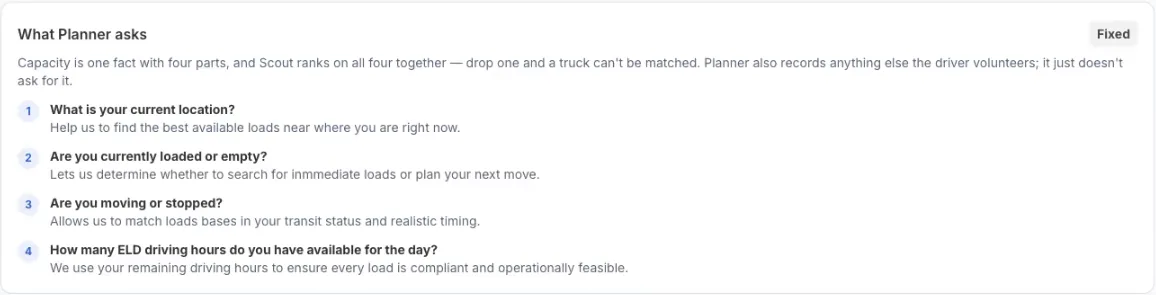
You set the when. The what is fixed: Planner asks four questions and you can’t add a fifth. If the owner connected his ELD, it asks only for what the ELD didn’t give.
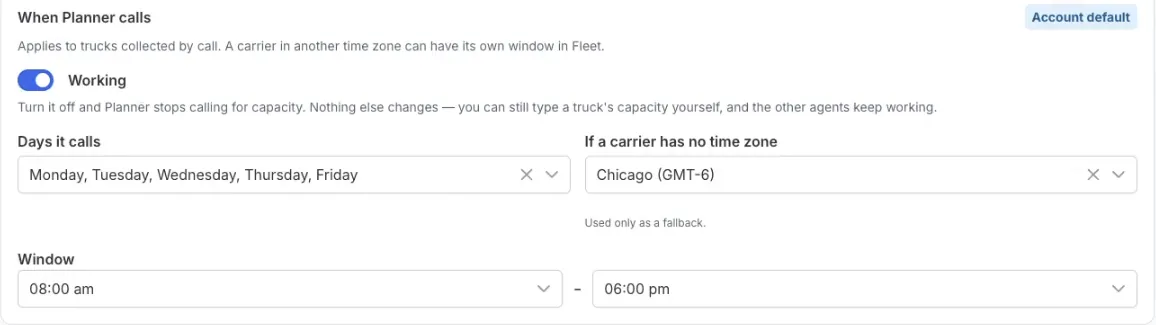
- The window is a ceiling, not a licence. Inside it, a driver is still called only if he agreed.
- A paused truck is skipped, by Planner, Scout and Closer alike.
- After a completed call, Planner waits 30 minutes before it dials the same driver again.
- When nobody answers, Planner retries: up to 3 attempts, 15 minutes apart, set by Tiriel and the same for every account.
- You can always type it. Entering a truck’s capacity yourself stays open whatever you set here.
Step 2: Set Scout’s schedule and rules.
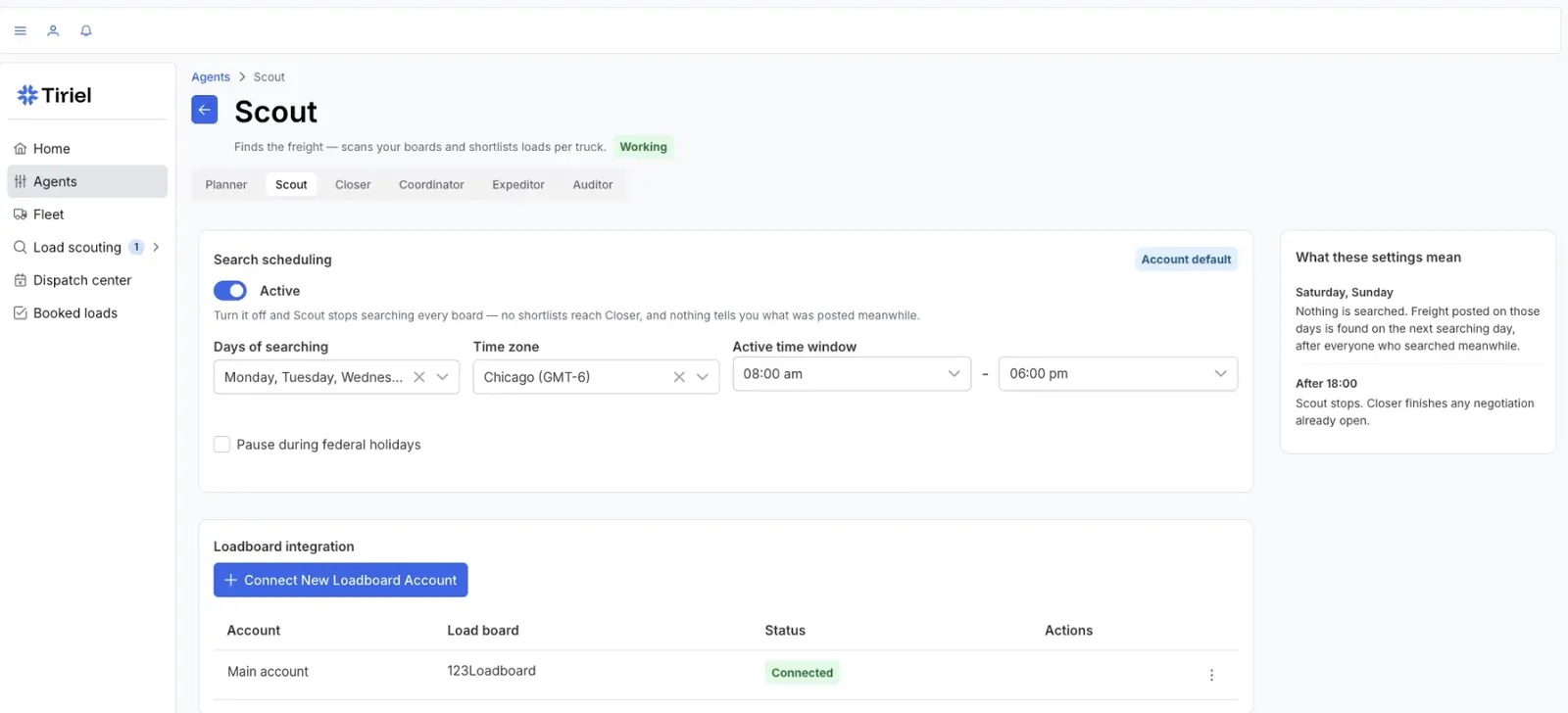
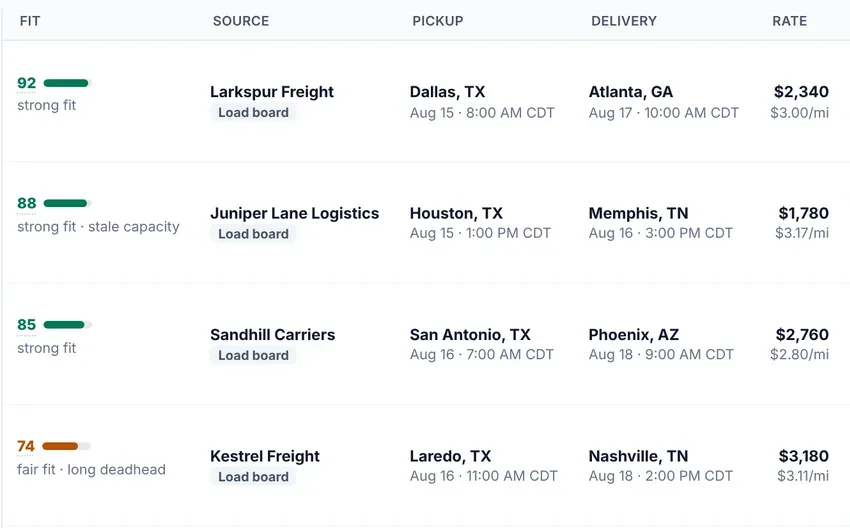
Open Agents, then Scout. Under Search scheduling, set Days of searching, the Time zone and the Active time window, choose whether to pause during federal holidays, and switch it to Active: Scout starts Paused, and nothing is searched until you do. Then set the rules it searches with: equipment, radius, destinations, a floor per loaded mile and the boards it works. Scout builds a shortlist for each truck that is ready, against its capacity, its equipment and those rules.
Set the rules once for the account, then change them for a carrier or a single truck when one runs differently. The most specific rule wins, and the screen shows which one is in force and where it was set. The floor decides which loads Scout brings you; Closer’s target and minimum, in step 3, decide how it negotiates them.
The Billing Policy measures the guarantee’s hours inside the schedule you set, and it names no default: the schedule is yours. Outside the days and hours you set, nothing is searched. If your trucks run weekends, keep the weekend in.
The schedule also matters for the first-month guarantee. Its 120 hours of active searching count only inside the days, hours and time zone you set here. At 10 hours a day, Monday to Friday, that’s about two and a half weeks; a wider schedule gets there sooner. And keep Scout Active: hours with Scout paused don’t count.
Step 3: Set Closer’s target and minimum.
Open Agents, then Closer. Under Negotiation criteria, set the Target rate, as a percentage above the posted rate, and the Minimum acceptable rate, as a percentage below the target. Closer aims for the first and rejects any offer below the second.
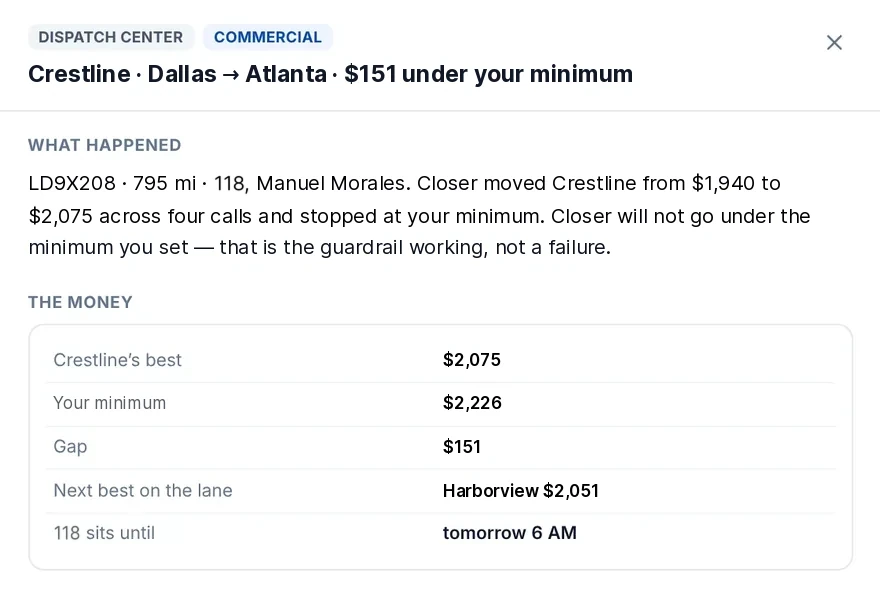
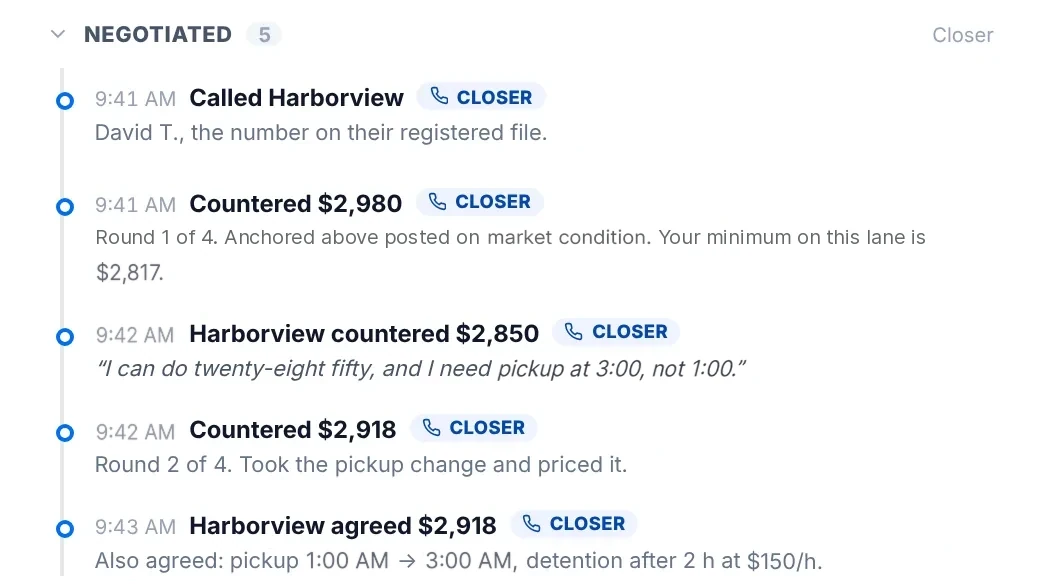
Inside those two numbers Closer negotiates on its own, calling brokers in parallel, in English or Spanish, with every call recorded. It never confirms a load outside the limits you set. Whatever you set, Closer never accepts a rate at or below what the broker posted, and never says your minimum out loud.

Before you pick a minimum, remember that both percentages start from what the broker posted, so a broker who posts low gets a proportionally lower minimum. Set it knowing that, and keep the approval switch in step 5 on while you learn how Closer negotiates.
Step 4: Set counteroffers and arguments.
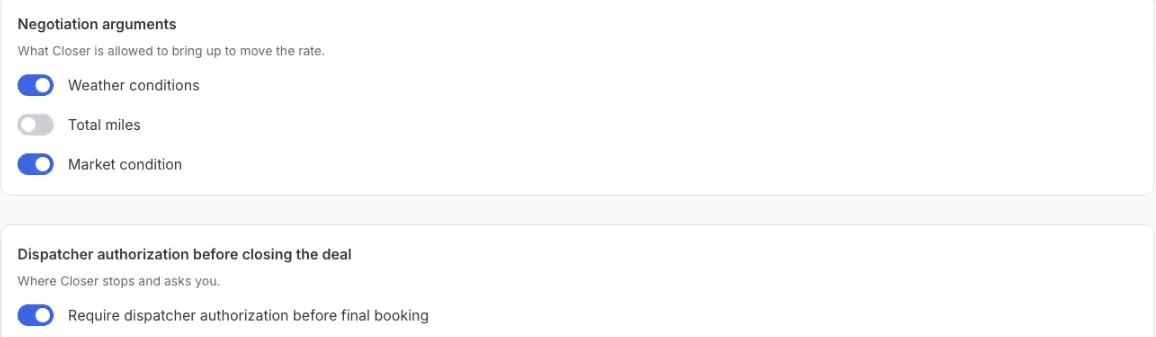
On the same screen, set Max negotiation attempts: how many counteroffers Closer makes before it walks away. Then, under Negotiation arguments, switch on what it may bring up to move the rate: Weather conditions, Total miles and Market condition.
Closer uses only the arguments you switched on. Leave one off and it never comes up on a call.
Step 5: Decide whether Closer asks you before booking.
Still in Closer’s settings, switch “Require dispatcher authorization before final booking” on or off. With it on, Closer negotiates, then stops and asks you. The load is not confirmed until you authorize it.
- On. Every agreed load waits for you in Dispatch center as Ready to authorize. You can always authorize there.
- Off. Closer moves an agreed load forward on its own, inside your limits.
Leave it on for your first weeks. Turn it off once you trust the limits you set in steps 3 and 4. Approve the exceptions shows what authorizing a load looks like.
Brokers you pause.
One more rule shapes what reaches you. It isn’t a step, because you set it as you go.
- A broker you pause. Scout stops offering you that broker’s loads until you resume. A pause is your call and you can lift it. A Block is different: it is an Auditor flag, it names its cause, and it always comes to you.
What no setting changes.
Some things are not settings, on purpose.
- Consent. A driver who hasn’t agreed is not called, whatever the schedule says. If he says “stop” or “ya no” on a call or by text, calls and texts stop at once.
- Auditor’s flags. If a broker can’t legally tender the load, Auditor flags it Block and it comes to you right away, with the evidence. Auditor has no settings and can’t be switched off.
- Lumpers. Tiriel never pays, authorizes or refuses a lumper. That decision always comes to you.
- Languages. Brokers hear English, or Spanish if they speak it. Drivers are called in English or Spanish.
- Coordinator and Expeditor. They take no settings from you.
What happens next.
Your rules are set. From here the agents work inside them, and what they can’t close without you waits in a short list of places. The last guide shows where to look and how to answer.