Before you start.
- An active account. If you don’t have one, start with Create your account.
- The city your number should come from, and a first name for your agent.
- The login for the inbox your brokers write to. Gmail or Outlook.
- Your own 123Loadboard login. Scout searches through your account. There is no shared one.
- A word with each owner who runs an ELD. Only he can connect it, from his phone.
Step 1: Get your dispatch number.
Open Agents, then Channels, and choose Get a number. Under Local area, start typing your city, pick it from the list and choose Assign my dispatch number. Tiriel assigns your account a phone number of its own, from your region: you don’t port a number or sign up for anything. It is the number your agents call from. Until the number and the identity in step 2 are set, the rest of the platform stays paused.
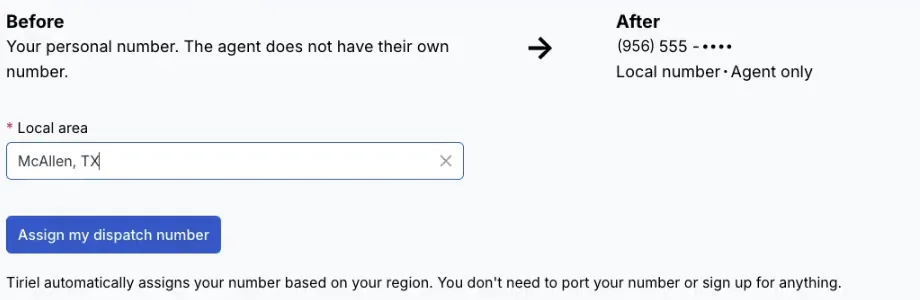
It is a separate line, not your cell. Each driver is shown this number before he agrees to be called, and asked to save it so he knows who is calling. Keeping it apart from your own phone is what lets him tell the two apart.
The number takes calls and text messages. It is what lets Planner, Closer, Coordinator and Expeditor pick up the phone. Scout doesn’t need it: it reads load boards and inboxes, not people.
Step 2: Name your agent.
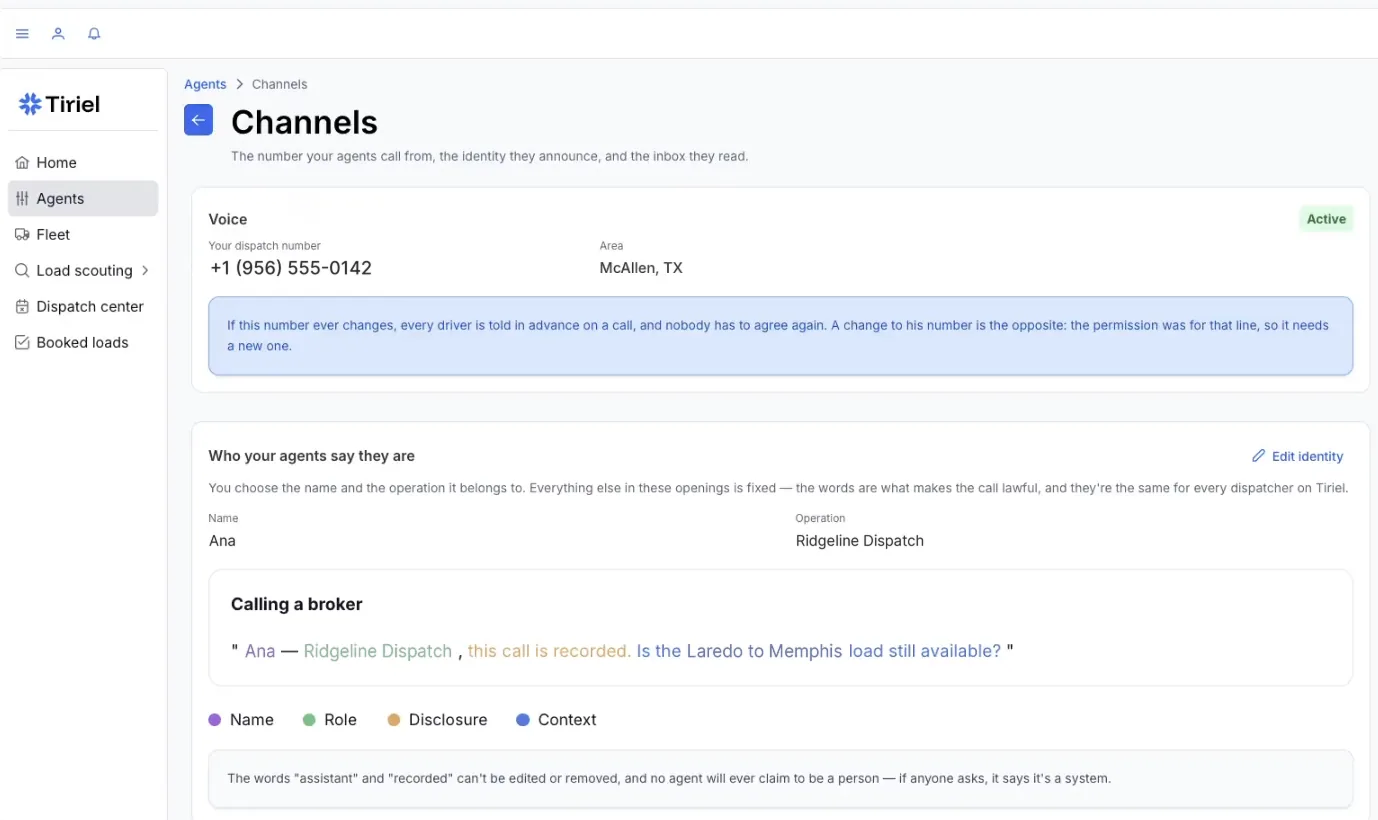
On the same screen, under Personal and agent information, confirm your first and last name, type your agent’s name, and, if your operation has a trade name, its Commercial Name. Use a first name for the agent, the way a person on your team would be called. Every call says who is calling and on whose behalf: a broker hears your agent’s name and your operation’s name, then “this call is recorded”; a driver hears that it is your assistant. You can change it later with Edit identity.
The name is yours to choose. What the agent is stays fixed: if anyone asks whether they are talking to a person, it says it is a system, and the words “assistant” and “recorded” can’t be edited or removed. With brokers it speaks English, or Spanish if the broker speaks it. It says which carrier it represents and confirms the MC when asked.
Step 3: Connect your inbox.
Still in Channels, choose Integrate my email, then Connect email with Google or Connect email with Microsoft. Tick the box to accept the terms of the email integration and choose Continue. Then pick the account your brokers write to, and approve the request on Google’s or Microsoft’s own page. Tiriel never asks for your email password.

The inbox is where rate confirmations, PODs and broker offers arrive, so it is what lets your agents read them. With Google, you approve three things:
- Read your email, so rate confirmations and PODs are found, and Scout can read broker offers.
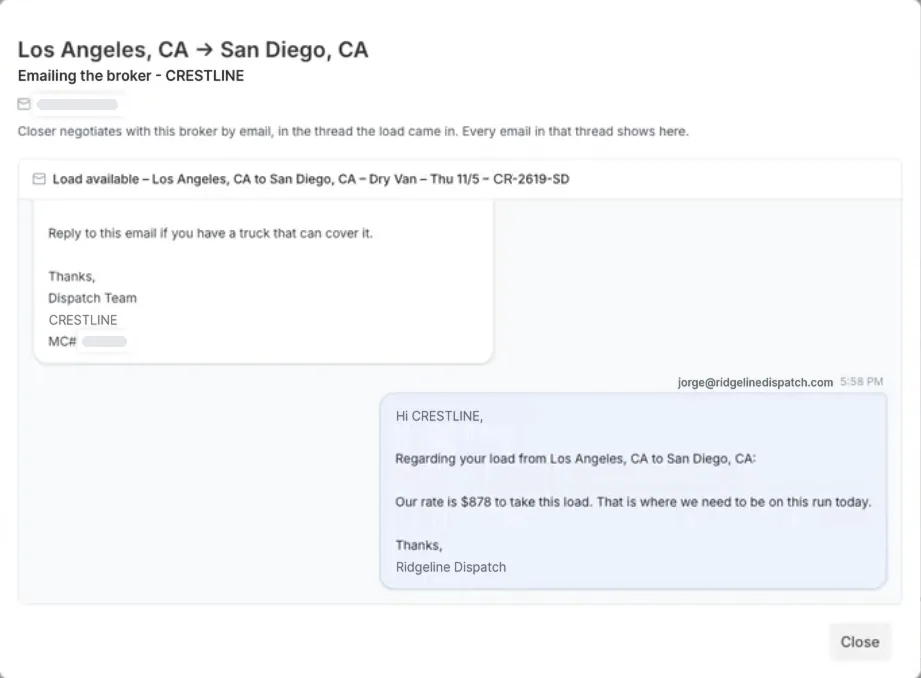
- Reply on your behalf, from your own address, in the broker’s thread. There is no Tiriel alias.
- Organize email with labels, so you can see in Gmail which threads Tiriel handled.
Two limits to know. Google has no “work email only” permission: the narrowest one covers the whole mailbox, and the filter to broker mail is on Tiriel’s side. And only mail that arrives after you connect is read. Nothing older is.
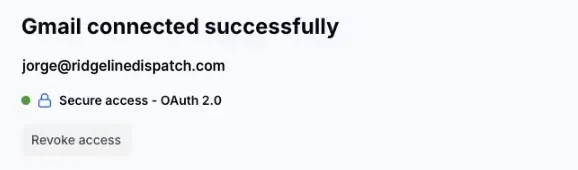
Finish the inbox connection to its last screen: it shows the connected address and a Revoke access button, and on Agents the Email card reads Connected. Your agents work on your inbox only once the mailbox is authorized.
Step 4: Choose how far your agents go.
Open Agents, then Closer, and set its limits: a target above the posted rate, a minimum below that target, and how many counteroffers it makes. Closer negotiates by phone or by email the same way, inside those limits, and every email goes out from your own address. It never accepts a rate at or below what the broker posted.
Two controls stay yours. Closer negotiates a load only once you send it, unless you put that lane or broker on full auto. And with “Require dispatcher authorization before final booking” on, an agreed load waits in Dispatch center until you authorize it. Authorizations and consent explains both.
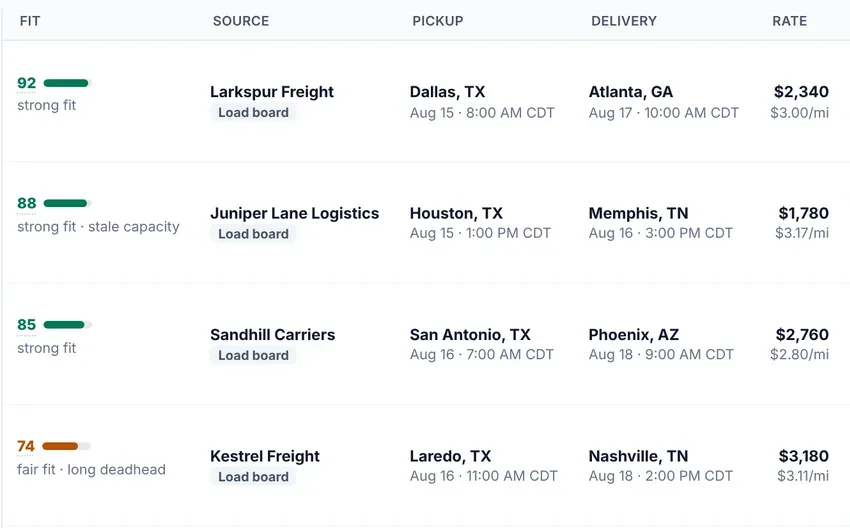
On each shortlisted load: Send to Closer, I’ll negotiate, or Discard.
Shortlisted loads go straight to Closer.
Target 6% above posted · minimum 2% below target · up to 4 counteroffers. Nothing is booked until you authorize it.
Step 5: Connect 123Loadboard.
Open Agents, then Scout. Under “Connect your first load board”, choose Connect New Loadboard Account. Pick 123Loadboard, type an account name you’ll recognize, and choose Continue. Sign in on 123Loadboard’s page and choose Authorize: Tiriel asks for one permission there, Searching loads.
You come back to the Scout page with the account listed as Connected. You signed in on 123Loadboard’s own page, so Tiriel never sees or stores your password.
'%3E%3Ccircle cx='100' cy='96' r='82' fill='%23E0F7FA'/%3E%3Cpath d='M62 160 C55 118 60 68 72 50 C82 36 92 32 100 32 C108 32 118 36 128 50 C140 68 145 118 138 160 Z' fill='%237A4A26'/%3E%3Cpath d='M30 200C32 166 56 150 84 146L100 158 116 146C144 150 168 166 170 200Z' fill='%230891B2'/%3E%3Cpath d='M84 146 100 170 116 146 109 143 100 158 91 143Z' fill='%23FFF'/%3E%3Cpath d='M88 124V148C93 154 107 154 112 148V124Z' fill='%23F4D7BE'/%3E%3Cellipse cx='68' cy='95' rx='7' ry='10' fill='%23F4D7BE'/%3E%3Cellipse cx='132' cy='95' rx='7' ry='10' fill='%23F4D7BE'/%3E%3Cpath d='M70 89C70 59 84 43 100 43S130 59 130 89C130 115 117 135 100 135S70 115 70 89Z' fill='%23F4D7BE'/%3E%3Ccircle cx='89.5' cy='92' r='5' fill='%230B0B0B'/%3E%3Ccircle cx='111.5' cy='92' r='5' fill='%230B0B0B'/%3E%3Cpath d='M90 117C96 123 104 123 110 117' fill='none' stroke='%23C07463' stroke-width='5' stroke-linecap='round'/%3E%3Cpath d='M70 85 C70 57 84 41 100 41 C116 41 132 55 130 85 C122 65 110 57 94 59 C84 61 76 69 70 85 Z' fill='%237A4A26'/%3E%3C/g%3E%3C/svg%3E)
Connect a load board account
Agents · Scout
Load board
You sign in on 123Loadboard and authorize Tiriel there.
Account name
Main account
- More than one account. You can connect several 123Loadboard accounts. They combine into one pool for your whole fleet, and Scout searches them together.
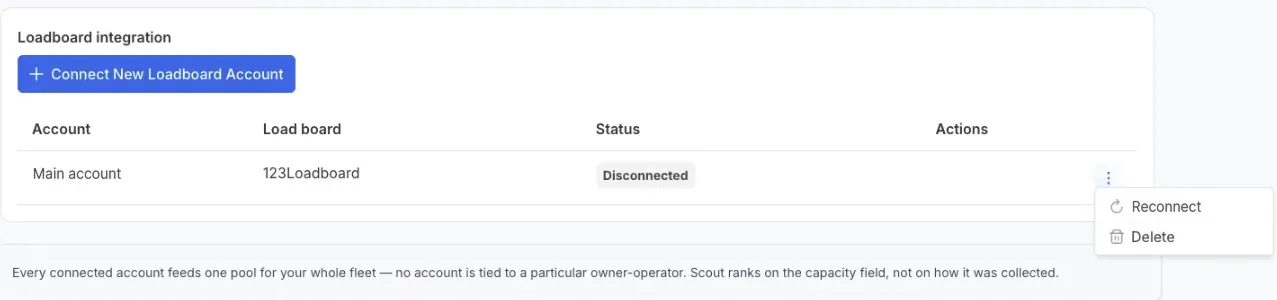
- What you see after. One row per account: Account, Load board, Status and Actions. Each row’s menu has Reconnect and Delete.
- Without a connected load board, Scout runs no search. You can still bring a load you found yourself, in Load scouting under Bring a load.
- DAT and Truckstop: working on them, coming soon.
Step 6: Invite the owner to connect his ELD.
The ELD is optional, and it belongs to the owner operator. Once his truck is in Fleet, send him the ELD invitation from there. It reaches his phone by text message. In two steps he picks his provider, signs in on our telematics partner’s secure page, with Tiriel’s name at the top, and comes back to a confirmation.
You can’t connect it for him, and Tiriel never sees his ELD password. More than 300 telematics providers are available.
Once it is connected, Planner asks the driver only for what the ELD didn’t give. If the owner says no, or his provider isn’t on the list, nothing is blocked: Planner calls the driver for capacity, or you enter it yourself. If his ELD gives hours but not location, usually because tracking is off in his provider’s plan, Planner calls only for the location.
You send the invitation
From Fleet, to the owner operator.
He opens it on his phone
Saying no costs him nothing.
He picks his provider and signs in there
On a secure page with Tiriel’s name.
Capacity is read from the ELD
Planner asks only what is missing.
When a connection drops.
Connections end for ordinary reasons. Here is what each one looks like, and what you do.
- 123Loadboard. A load board sign-in expires on its own. The row’s status reads Disconnected. Open the row’s menu and choose Reconnect. Until you reconnect, nothing posted to that account is searched. Your other accounts keep working.
- The owner’s ELD. If he changes his ELD password, the connection stops; nobody disconnected it. Until he reconnects in the same two steps, nothing is read and Planner calls the driver again.
- Your inbox. When a mailbox drops, Load scouting names the mailbox that is failing, so an empty list is never mistaken for a quiet day. Connect it again in Channels.
What happens next.
Your agents can now call, read mail and search freight. They have nothing to dispatch until you add a truck. That is the next guide: the carrier, the truck, the driver and his consent.
Every connection on this page is a permission you gave and can take back. Authorizations and consent lists each one, who gives it, and how it is withdrawn.