Before you start.
- Your account, your number and at least one truck, from the guides before this one.
- Each driver, with his own phone in his hand. Only he can accept, and only he can stop it.
- Each owner operator who runs an ELD. Only he can connect it.
- Your own logins for Gmail or Outlook and for 123Loadboard. Tiriel never asks for either password.
- Your inboxYou
At Google or Microsoft. You can revoke it.
- 123LoadboardYou
On 123Loadboard’s own page. You can delete it.
- An ELDThe owner operator
At his provider, from his phone. It is his to disconnect.
- Calls to a driverThe driver
On his own link. Only he can stop it, and only he can restart it.
- Sending a load to CloserYou
Or a lane or broker you put on full auto.
- Booking a loadYou
In Dispatch center, when you ask Closer to wait for you.
- A BlockComes to you
The strongest flag, with the evidence.
Step 1: Authorize your inbox.
When you connect Gmail or Outlook, you approve the request on Google’s or Microsoft’s own page, signed in as yourself. Tiriel never sees your email password. With Google you approve three things: read your email, reply on your behalf, and organize email with labels.
Before Google’s or Microsoft’s page opens, Tiriel shows the terms of the email integration on one screen, and you tick I understand and accept the terms of Tiriel’s email integration.
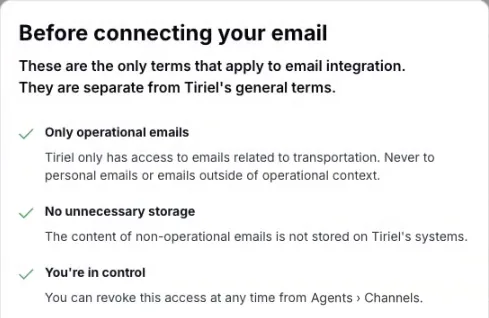
- What it is used for. Finding rate confirmations and PODs, reading broker offers, and replying from your own address.
- What is read. Only mail that arrives after you connect. Google’s narrowest permission covers the whole mailbox, so the filter to broker mail is on Tiriel’s side.
- How you take it back. Choose Revoke access on your email integration in Tiriel, or revoke it from your Google account. If that boundary isn’t good enough for you, don’t connect it: Tiriel works without email, with less reach.
Step 2: Authorize your load boards.
When you connect 123Loadboard, you sign in on 123Loadboard’s own page and authorize Tiriel there. Scout then searches through your account. Tiriel never sees or stores your password.
123Loadboard asks you to authorize one thing: Searching loads.
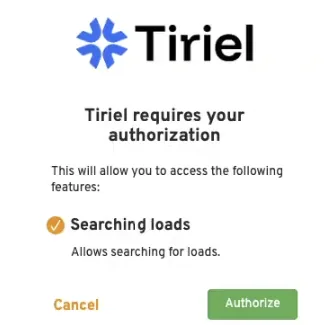
- What it is used for. Scout searching freight for your trucks, on the schedule you set.
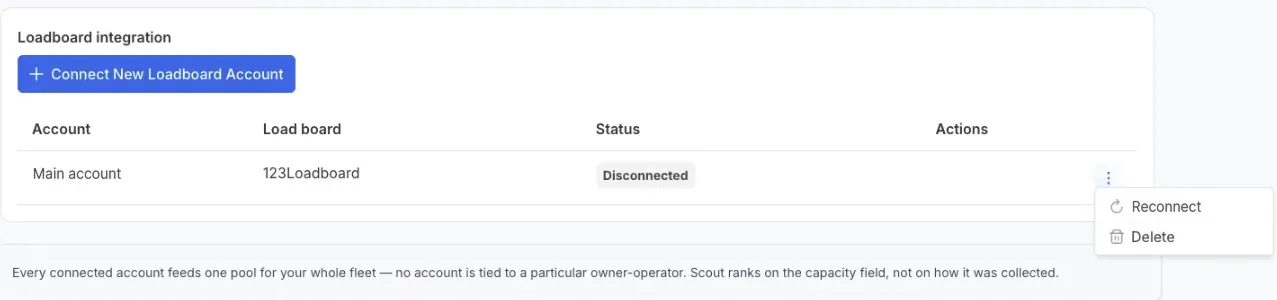
- How you take it back. On the Scout page, open the account’s menu and choose Delete. Scout stops searching that account, and nothing else changes.
- When it ends by itself. A load board sign-in expires on its own. The row reads Disconnected, and Reconnect, in the row’s menu, brings it back.
DAT and Truckstop: working on them, coming soon.
Step 3: Let the owner authorize his ELD.
The ELD belongs to the owner operator, so the yes is his. You send him the invitation from Fleet, and it reaches his phone by text message, with no login. He reads what will be seen, then signs in to his ELD account on our telematics partner’s secure page, with Tiriel’s name at the top. That is the only screen where he types his ELD password, and he comes back to a confirmation.
- What it is used for. Reading the truck’s capacity, so Planner asks the driver only for what is missing.
- What is read. His four hours-of-service clocks (driving, shift, break and cycle) and where the truck is, read-only. Not his messages, his pay or his other customers, and nobody can change anything in his ELD.
- When it is read. Only while there is an active load or you are searching one for him. Every read is logged with the date and time, and he can see the log from his link.
- How he stops it. One button on the same link, without telling anyone. If he asks Tiriel to stop calling him, the ELD reads stop with it.
- What you can’t do. Connect it for him, or see his ELD password.
- If he says no. Nothing is blocked. Capacity comes from Planner’s call, or from you.
It is a separate permission from the driver’s consent in the next step. One is about the truck’s data. The other is about calling a person.
Step 4: Get each driver’s consent.
Every driver agrees before he is called. You send him his link yourself. He opens it on his phone, reads who will call, from which number and why, and chooses “Yes, call me” or “No, thanks” (“Sí, llámame” or “No, gracias” in Spanish).
- If he says yes, the truck is active. The first call happens only after his yes.
- If he says no, the truck stays paused and you see it. He loses nothing: you keep calling him yourself, as always. Only he can change his answer, from the same link.
- What you can’t do. Accept for him. His answer is saved with the date and time, and nobody else can change it.
- What consent doesn’t stop. You entering the truck’s capacity yourself. Consent decides whether Tiriel may call him, nothing more.
Hi Manuel. I’m Ana, your dispatcher Jorge’s automated assistant. I’m not a person: I’m a system that works for Jorge.
From now on I will call you to ask where you are, how many hours you have left, and whether you’re loaded or empty.
I will call you from this number: (956) 555-0142. Save it so you know it’s me.
Calls and messages are recorded. That record is your backup: if a broker disputes something, what was said is on file.
Is it OK for me to call and text you at this number?
You can tell me to stop anytime.
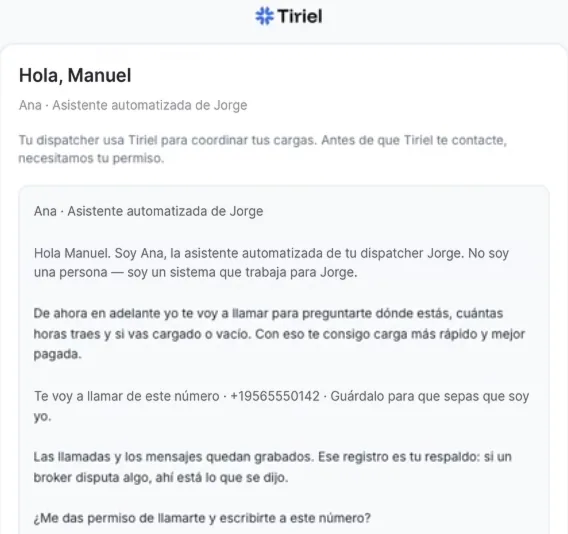
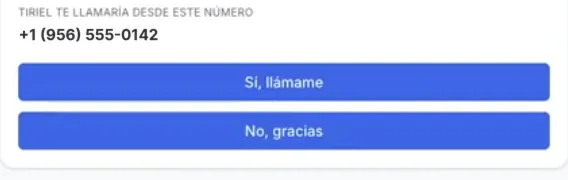
Consent belongs to the driver and his phone number, not to the truck. Move him to another truck and his yes moves with him. Give him a new number, or put a new driver on the truck, and a new yes is needed.
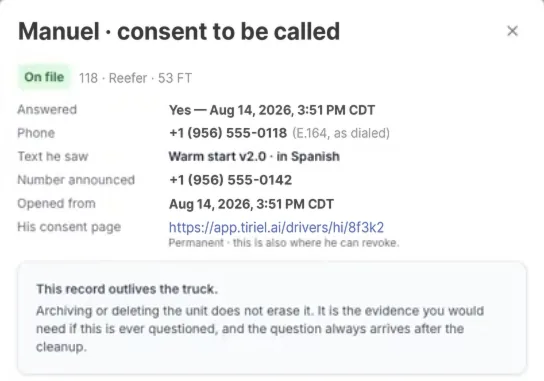
To see his answer, open his consent to be called in Fleet. It shows the answer with the date and time, the phone, the exact text he saw, the number announced and his own page. The record outlives the truck: archiving or deleting the truck does not erase it.
Step 5: Know how a driver stops it.
A driver can revoke at any time. If he says “stop” or “ya no” on a call or by text, calls and texts stop at once. On a call he can say it in his own words, in English or Spanish, and the agent stops calling him.
- It follows the person. Pausing, archiving, deleting or adding the truck again doesn’t undo his stop.
- Only he can lift it. You can’t switch it back on, and neither can we. What you can do is send him the same link again and let him decide.
- If someone else answers his phone, the consent is still his, not the phone’s. The call goes on without being recorded.
- What you do meanwhile. Call him yourself, and enter the truck’s capacity by hand.
Step 6: Decide which loads Closer works on its own.
Scout shortlists the loads that fit your trucks. On each one you choose Send to Closer, I’ll negotiate or Discard. Closer doesn’t negotiate a load you haven’t sent, except where you’ve said it can:
- Lanes on full auto. A shortlisted load on that lane goes straight to Closer.
- Brokers by trust. Trusted brokers go on full auto. A new broker’s loads are reviewed before Dispatch center, and that is the default. A broker on Watch needs your approval on every load.
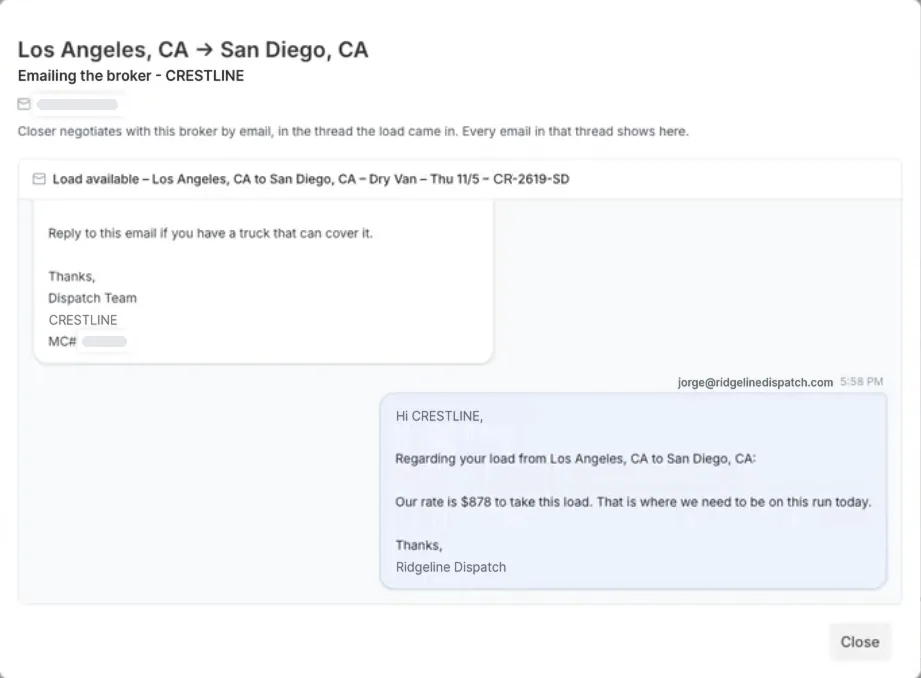
- Email, the same as the phone. Closer negotiates by email inside the same limits, from your own address, in the broker’s thread. You can watch, take over or stop it at any time.
Step 7: Decide what needs your approval.
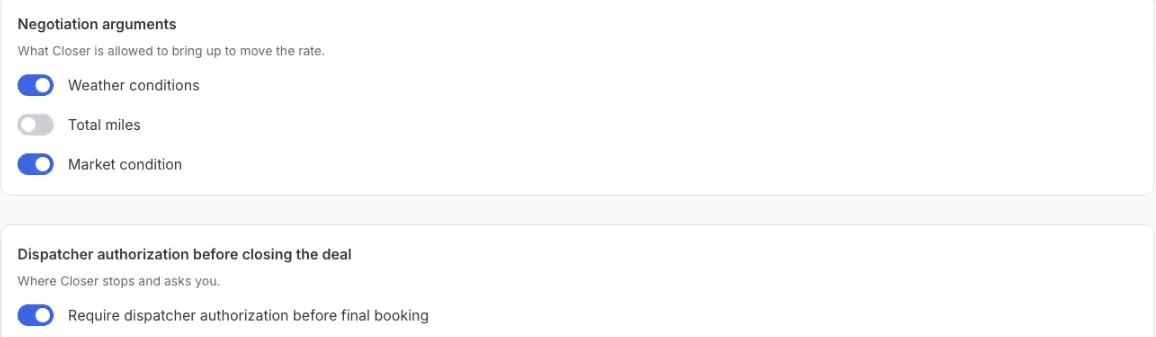
Open Agents, then Closer, and look at “Require dispatcher authorization before final booking”. With it on, Closer negotiates and then stops. The agreed load waits in Dispatch center as Ready to authorize, and you authorize or reject it.
With it off, Closer moves an agreed load forward on its own, inside the limits you set. Leave it on while you learn how Closer negotiates.
Some decisions come to you whatever that switch says:
- A counteroffer below your limits. Closer never accepts under your minimum.
- A lumper. Tiriel never pays, authorizes or refuses a lumper.
- A broker you want to walk away from.
- A warning you choose to override. The override is recorded with who and when.
Step 8: Know what Auditor flags.
Auditor vets every broker and carrier before the truck moves, and checks again when a load activates. It has no settings and can’t be switched off. It answers with one of four decisions: Approve, Warn, Review or Block.
'%3E%3Ccircle cx='100' cy='96' r='82' fill='%23FDF0E1'/%3E%3Cpath d='M86 29 A14 14 0 1 0 114 29 A14 14 0 1 0 86 29 Z' fill='%233A2A20'/%3E%3Cpath d='M30 200C32 166 56 150 84 146L100 158 116 146C144 150 168 166 170 200Z' fill='%23B45309'/%3E%3Cpath d='M84 146 100 170 116 146 109 143 100 158 91 143Z' fill='%23FFF'/%3E%3Cpath d='M88 124V148C93 154 107 154 112 148V124Z' fill='%23F2D2B6'/%3E%3Cellipse cx='68' cy='95' rx='7' ry='10' fill='%23F2D2B6'/%3E%3Cellipse cx='132' cy='95' rx='7' ry='10' fill='%23F2D2B6'/%3E%3Cpath d='M70 89C70 59 84 43 100 43S130 59 130 89C130 115 117 135 100 135S70 115 70 89Z' fill='%23F2D2B6'/%3E%3Ccircle cx='89.5' cy='92' r='4' fill='%230B0B0B'/%3E%3Ccircle cx='111.5' cy='92' r='4' fill='%230B0B0B'/%3E%3Cpath d='M90 117C96 123 104 123 110 117' fill='none' stroke='%23B5705F' stroke-width='5' stroke-linecap='round'/%3E%3Cpath d='M70 87 C68 55 82 39 100 39 C118 39 132 55 130 87 C126 67 116 55 100 55 C88 55 78 63 74 79 Z' fill='%233A2A20'/%3E%3Cpath d='M79 86 h19 a2 2 0 0 1 2 2 v8 a2 2 0 0 1 -2 2 h-19 a2 2 0 0 1 -2 -2 v-8 a2 2 0 0 1 2 -2 Z M102 86 h19 a2 2 0 0 1 2 2 v8 a2 2 0 0 1 -2 2 h-19 a2 2 0 0 1 -2 -2 v-8 a2 2 0 0 1 2 -2 Z M100 91 h2' fill='%23FFF' fill-opacity='.3' stroke='%231F2937' stroke-width='3.6'/%3E%3C/g%3E%3C/svg%3E)
Four decisions
Every broker, carrier and load
- ApproveMoves
Nothing was flagged. Missing data never approves.
- WarnYou can override
The override is recorded with who and when.
- ReviewYours to resolve
Evidence is missing or two sources disagree.
- BlockFlagged to you
Comes to you right away, with the evidence.
A Block has three hard causes: no authority to operate, a broker without an active bond, or a revoked authority. If a broker can’t legally tender the load, Auditor flags it Block and it comes to you right away, with the evidence.
For double brokering, Auditor compares independent signals, such as an MC on the rate con that differs from the MC contacted. Two signals flag the load for Review. Three or more flag it Block and open a fraud case with the evidence.
What happens next.
Every permission on this page leaves a record, and so does every action taken under it: the call recording, the email, the rate con. You can open them whenever a broker, a driver or an owner asks what happened.
With the permissions in place, the next guide sets the limits your agents work inside: when Planner calls, when Scout searches, and how far Closer can go.